Setup4 min readChecked 22 Oct 2026
How to install an eSIM on iPhone, step by step
Short answer
Do it at home on Wi-Fi. Scan the provider's QR code from Settings, name the new line “Travel” and keep your home line for calls. When you land, set mobile data to Travel and turn on Data Roaming for it. About five minutes, start to finish.
You need
- iPhone XS, XR or newer
- A phone not locked to your carrier
- Wi-Fi
- The QR code or activation code from your provider
Check three things first
One minute now saves the most common failures at the airport.
Your iPhone is unlocked
If it shows anything other than “No SIM restrictions”, your carrier has to unlock it before a travel eSIM will work.
SettingsGeneralAboutCarrier Lock
Your iPhone supports eSIM
Every iPhone from the XS and XR (2018) on does. iPhones sold in mainland China use two physical SIMs instead, except some recent models.
iOS is up to date
Not required, but newer versions let you add the eSIM straight from an email and fix older activation bugs.
SettingsGeneralSoftware Update
Install it at home, on Wi-Fi
The eSIM downloads over the internet, so you need Wi-Fi now. Install it a day or two before you fly, not at the gate.
- 1
Open the QR code on a second screen
Your provider emails it or shows it in their app. Put it on a laptop or print it so your iPhone can scan it. Only one phone? From iOS 17.4, touch and hold the QR code in the email and tap Add eSIM.
- 2
Go to Add eSIM
On some iPhones the menu is called Mobile Service or Mobile Data instead of Cellular. It is the same thing.
SettingsCellularAdd eSIM
- 3
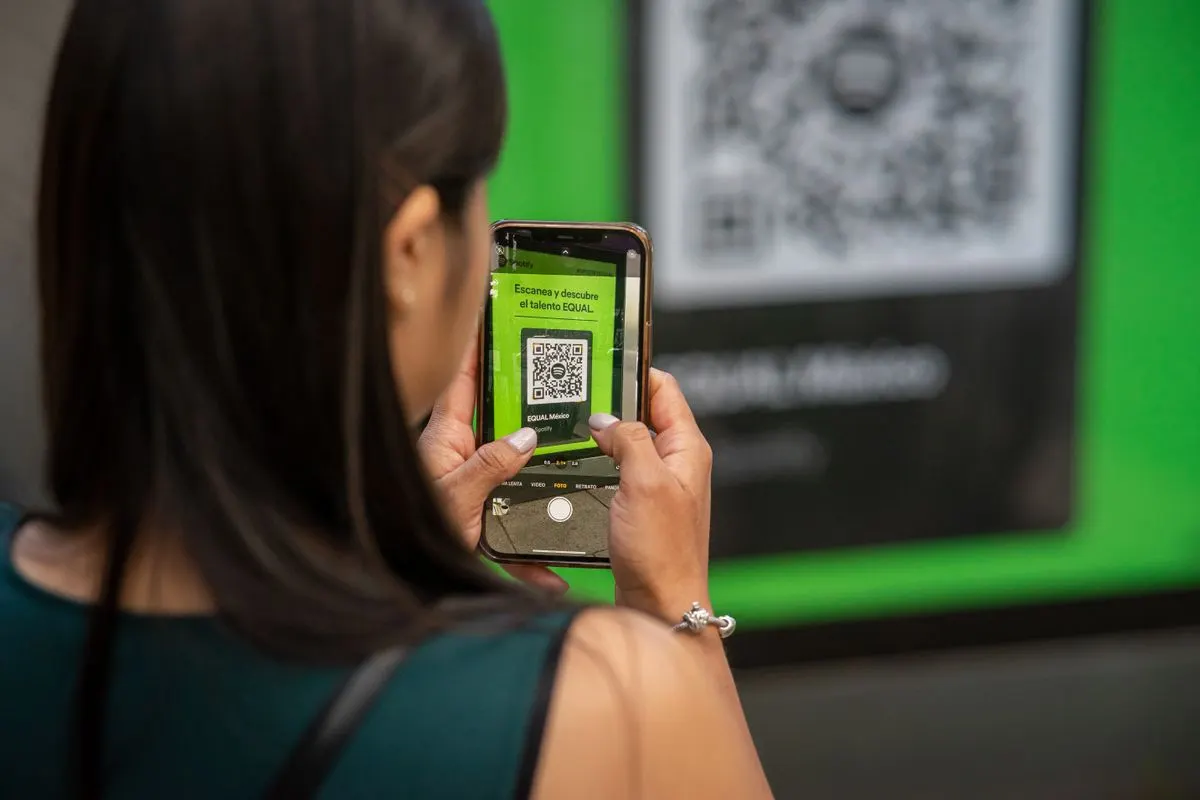
Scan the code
Tap Use QR Code and point the camera at it. No QR code? Tap Enter Details Manually and type the SM-DP+ address and activation code from your provider.
- 4
Tap Continue, then wait
It takes up to a few minutes. Stay on Wi-Fi and do not lock the phone until it says the plan was added.
- 5
Name the new line “Travel”
Your home line stays Primary or Personal. Clear names stop you picking the wrong one later.
Cellular Plan LabelsCustom Label
- 6
Keep your home line as the default for now
Default voice line: Primary. iMessage and FaceTime: Primary. Cellular data: Primary until you land. Then turn off Allow Cellular Data Switching, so your home line never uses data abroad.
SettingsCellularAllow Cellular Data Switching
When you land: three switches
Do this before you leave the plane or the arrivals hall, while you still have time.
- 1
Send mobile data over Travel
Your iPhone now uses the eSIM for the internet.
SettingsCellularCellular DataTravel
- 2
Turn on Data Roaming for Travel
A travel eSIM is always “roaming” to the phone, so without this switch you get no data at all.
SettingsCellularTravelData Roaming
- 3
Turn off Data Roaming for your home line
Leave the line itself on, so calls and texts to your number still reach you. Only its data stays off, which is what costs money.
SettingsCellularPrimaryData Roaming

If something goes wrong
The messages iPhone shows, what they mean and what to do.
“Cellular Plan Cannot Be Added”
Why it happens
The phone is locked to a carrier, or the code was already used.
What to do
- 1Check Carrier Lock says “No SIM restrictions”.
- 2Ask the provider whether the code was already installed. They can send a new one if it was not used.
It hangs on “Activating…”
Why it happens
The download needs a steady internet connection.
What to do
- 1Move to a stronger Wi-Fi and wait ten minutes.
- 2Restart the iPhone. The eSIM often finishes activating after the restart.
Installed, but “No Service” after landing
Why it happens
Data Roaming is off for the Travel line, or it has not joined a network yet.
What to do
- 1Turn on Data Roaming for Travel.
- 2Turn Airplane Mode on for ten seconds, then off.
- 3Still nothing? Open our slow eSIM guide and go to “No signal at all”.
Your home line used data abroad
Why it happens
Allow Cellular Data Switching was on, or mobile data was still set to Primary.
What to do
- 1Set Cellular Data to Travel.
- 2Turn off Allow Cellular Data Switching.
After the trip
Set mobile data back to your home line
Do it when you land at home, or your phone keeps trying the expired eSIM.
SettingsCellularCellular DataPrimary
Turn the Travel line off
Keep it if your provider lets you top up for the next trip. Delete it only when you are sure.
SettingsCellularTravelTurn On This Line